
Losing photos and important files can be frustrating, especially when they contain memories, personal projects, or years of work. A reliable backup plan helps protect your data from accidental deletion, device failure, theft, and other unexpected problems.
The good news is that backing up your files does not have to be complicated. With a few simple tools and regular habits, you can create copies of your important data and keep them available when you need them.
Why backing up matters
Your computer, phone, tablet, or external drive can fail without warning. Files may also be deleted accidentally, damaged by software problems, or lost if a device is misplaced.
A backup is a separate copy of your files stored somewhere other than the original device. If the original files become unavailable, you can restore them from the backup.
Common files to protect include:
– Photos and videos
– Personal documents
– School or work projects
– Music and creative files
– Tax and household records
– Contacts and calendars
– Website files and other personal projects
A backup is different from simply moving files to another folder. If both copies are stored on the same device, a device failure could affect them both.
Use the three-copy backup approach
A practical way to organize your backups is the three-copy approach. It recommends keeping:
- The original files
- A local backup on another device
- An additional backup in a separate location
For example, your original photos might be stored on your laptop, a second copy could be saved to an external hard drive, and a third copy could be stored with a cloud service.
This approach reduces the chance that one accident will remove every copy of your files. The separate location can be another room, a workplace, a trusted family member’s home, or an online storage account.
Choose the right backup options
Most people use a combination of external storage and cloud storage. Each option has different benefits.
External hard drives
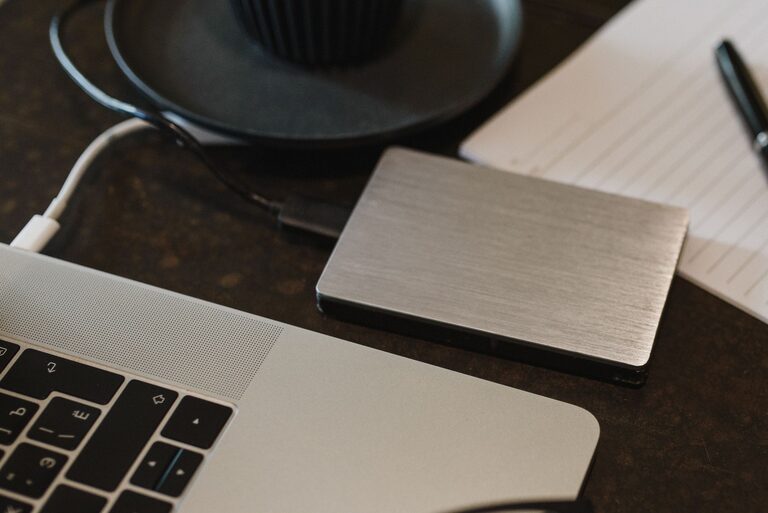
External hard drives are useful for storing large collections of photos, videos, and other files. They are usually easy to connect to a computer and can provide plenty of storage space.
When choosing an external drive, consider:
– Storage capacity
– Compatibility with your computer
– Transfer speed
– Warranty and build quality
– Whether the drive is easy to carry
Keep the drive disconnected when you are not backing up files. This helps protect it from accidental changes, hardware problems, and some types of malicious software.
USB flash drives
USB flash drives are convenient for moving or storing smaller groups of files. They work well for documents, selected photos, and short-term file transfers.
However, they may not be the best choice for a complete photo library. They are easier to lose, and many have less storage space than external hard drives. Use them as an additional copy rather than your only backup.
Cloud storage
Cloud storage keeps your files on remote servers that you access through the internet. It can automatically save photos and files from your computer or mobile device.
Cloud storage is useful because:
– Your files are available on multiple devices
– Backups can happen automatically
– The files are stored away from your home
– You do not need to carry a physical drive
Before choosing a service, check its storage limits, supported devices, file recovery options, and privacy settings. Make sure you understand how files are synced. In some services, deleting a file on one device may also delete the synchronized copy.
Back up photos from your phone
Phones often contain years of valuable photos, so they should be part of your backup plan.
Start by checking whether your phone has an automatic photo backup feature. Many phones can upload photos to a cloud photo service when connected to Wi-Fi. Review the settings to confirm:
– Which photos and videos are included
– Whether uploads happen automatically
– Whether the original image quality is preserved
– How much storage space is available
– Whether uploads use mobile data
Automatic uploads are convenient, but they should not be your only protection. Every so often, download a separate copy of your most important photos to a computer or external drive.
If you use a memory card in a camera or phone, copy the files to another device as soon as practical. Avoid leaving your only copy on the card for a long time.
Create a regular backup schedule
A backup plan works best when it becomes a routine. Choose a schedule based on how often your files change.
You might use this simple approach:
– Back up new photos and files every week
– Create a full local backup once a month
– Review your cloud backup settings every few months
– Make an extra copy before replacing or repairing a device
If you regularly work on important files, back them up more often. Some backup programs can run automatically at scheduled times, reducing the need to remember each step.
Use calendar reminders if your backup process is manual. A short, regular session is easier than trying to recover years of files after a problem.
Organize files before backing them up
Good organization makes backups easier to manage and restore. Create clear folders with names that explain what they contain.
For photos, you could organize files by:
– Year
– Month
– Event
– Location
– Family member or project
For documents, use folders such as Home, Work, School, Projects, and Records. Avoid storing everything in one large folder or leaving files scattered across multiple devices.
Use descriptive file names when helpful. For example, “2026-07-family-reunion” is easier to identify than a camera-generated name such as “IMG_4821.”
Before creating a backup, remove obvious duplicates and unwanted files. This saves storage space and makes it easier to find what matters.
Protect your backup accounts and devices
Your backups should be easy for you to access but difficult for others to use. Protect cloud storage accounts with strong, unique passwords. If available, turn on two-step verification for an additional layer of account security.
For physical drives, keep them in a safe, dry location away from heat, moisture, and accidental damage. If a drive contains sensitive personal files, consider using the device’s built-in encryption tools.
Keep a record of which files are stored on each backup device. If you use several drives, label them clearly with a name and the date of the latest backup.
Test your backups
A backup is only useful if the files can be opened and restored. Test your backups occasionally by selecting a few files and copying them to another device.
Check that:
– Photos open correctly
– Videos play from beginning to end
– Documents are readable
– Folder names and dates are preserved
– The backup software reports successful completion
Do not wait until your computer fails to discover that a backup is incomplete or damaged. Testing takes only a few minutes and can reveal problems early.
What to do when replacing a device
Before selling, recycling, or giving away a computer or phone, make a complete backup of its files. Check the backup on another device before removing anything from the original.
After confirming that your files are safe, sign out of personal accounts and use the device’s built-in reset or erase feature. For an old storage drive that will no longer be used, follow the manufacturer’s guidance for securely removing personal data.
When setting up a new device, copy your files from the backup rather than relying on memory to find everything manually.
A simple backup plan to start today
If you have no backup system yet, begin with these steps:
- List the photos and files you cannot replace.
- Gather an external drive with enough storage space.
- Copy your important files to the drive.
- Turn on automatic cloud backup for your phone or computer.
- Store the external drive separately from your main device.
- Set a weekly or monthly reminder.
- Test a few files to confirm the backup works.
A dependable backup plan is built through small, consistent actions. By keeping more than one copy, storing copies in different places, and checking them regularly, you can protect your photos and files for years to come.